License & recovery
One key. Two Macs.
Buy once, receive your key by email, and activate in MacStick. No account or password needed.
First: open the downloaded file and drag MacStick into your Applications folder. Open it from Applications, not from the download window.
Activate in three steps

1Copy your key
It is in the email from MacStick or Dodo Payments.
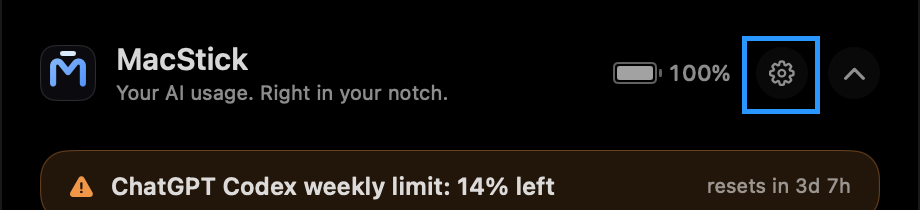
2Open Settings
Click the island, then the gear.
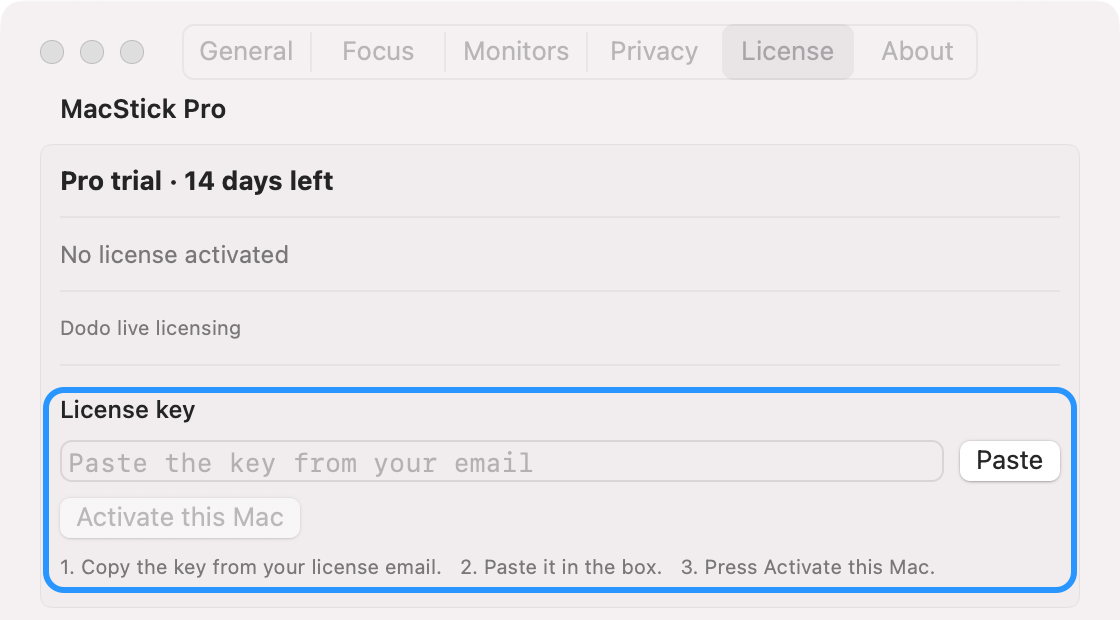
3Paste and activate
License tab, press Paste, then Activate this Mac.
When it works, Settings → License shows “MacStick Pro is active on this Mac”. Activation uses one of your two device slots and stores the key in your Mac’s login Keychain.
It did not work?
- No box to paste into: update to MacStick 1.2.2 or later from the download page. Older versions hid the box.
- “Activate this Mac” is grey: the box is empty. Press Paste, or click the box and press Command-V.
- The key is rejected: copy the whole key with no spaces around it, and check you are online.
- Device limit reached: open MacStick on an old Mac and choose Deactivate this Mac, then try again.
- Still stuck: email support with your receipt. Never send or post your full key.
Show your real Claude Code limits
Optional, for Claude Pro and Max subscribers who use Claude Code in a terminal. Without it, MacStick shows an estimate.
1Open Settings
Click the island, then the gear.
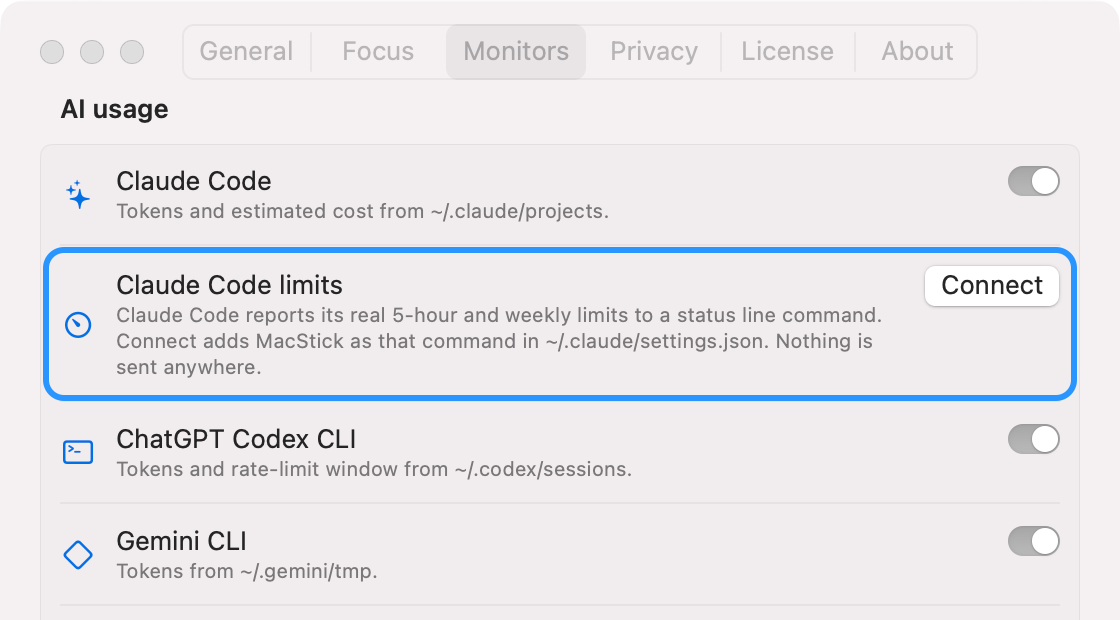
2Press Connect
Monitors tab, Claude Code limits, Connect.

3Use Claude Code
Send one message in a terminal session. The real limits appear.
Connect adds one line to ~/.claude/settings.json and keeps a backup. Nothing leaves your Mac. Disconnect in the same place removes it.
Limits still show as an estimate?
- No Connect button: MacStick is running from the download window. Drag it into Applications and open it from there.
- A Reconnect button: MacStick was moved after connecting. Press Reconnect.
- “Custom status line”: you already use your own status line in Claude Code. MacStick will not replace it.
- Nothing changes: limits arrive only from Claude Code in a terminal, after one reply. The Claude desktop app does not report them.
Moving to another Mac?
On the old Mac, choose Deactivate this Mac in License settings. Then activate on the new Mac. Both operations need an internet connection. The device limit is configured on your Dodo license entitlement.
Can’t find your key?
Check the inbox and spam folder for the address used at checkout. Look for MacStick or Dodo Payments. Request your license by email → Recovery sends only to your purchase email and never displays a key on this website. If you no longer have access to that address or your old Mac is unavailable, use the merchant contact on your Dodo receipt.
Do I need to sign in or reset a password?
No. Your license key activates MacStick. There is no MacStick account password to remember or reset, and Google sign-in is not required.
Offline?
After successful verification, MacStick’s license status allows a seven-day offline grace window. Reconnect and use Check license now to refresh it. A reported revocation overrides that window. Files and local app data are never deleted when licensing changes.
Refunds and revocation
Dodo manages license validity and revocation. A refunded one-time purchase can disable the associated key. Use the receipt’s merchant contact for billing questions; no refund request is submitted by this page.
Free, trial and Pro
Every install starts with 14 days of Pro. After that MacStick keeps working as the free version: the island, focus timer, battery, music controls, today’s AI usage, your next event and a 3-file shelf. A Pro license ($19 once, two Macs) unlocks one-click Join, agent alerts, the AI budget with pace and burn rate, limit reset times, an unlimited shelf, OLED care and island templates. Nothing is deleted when a license ends. Automatic updates are not built in yet; new versions are published on the download link.